Well, Most of the People Knows How to make a Blog !
But still, I've always Wondered about How people Makes these things long before when i started blogging!!
And I haven't seen anyone Posting "How to make a Blog" , So I am just Posting ..
Making a Blog is as simple as taking a Chocolate from a Kid =P
Let me Explain!
Firstly You'll need an Account In Gmail Or Yahoo Or Somewhere..
Best is Gmail =P (Just Sign In)
Steps:
- Go to. Blogger.com
- Then Click "Create a Blog" & Sign Up!
- After that fill up the Stuffs, then Click On Continue
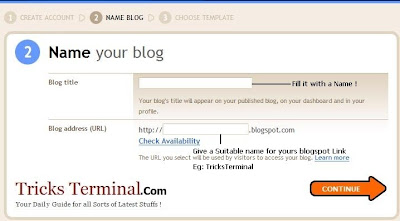
- Then Select a Template, their will be Some Default One's ..Select Any, You Can Change it later!
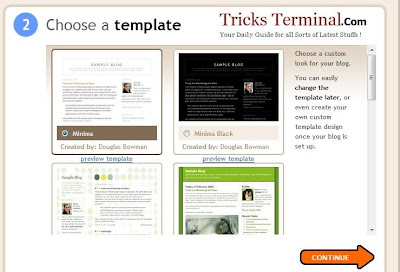
- Click Continue!

- Your blog has been created!
Now you can Start posting to your blog . To post your first blog, click, "Start posting."
Or Click New Post!
Also Read How to Change the Favicon/Icon in blogger!
Do make a Comment if this is helpfull!

Ever Wondered How People Flood Someone's mobile with lots and lots of SMS !
Well, there are lots of ways to do that.
Most of them are not Working now a days..
Atlast I found one in Our Famous Community OUG!
I'll tell u How to use it !
You will need Mozilla Firefox & the Addon Grease Monkey for this Script to Work!
- Firstly you need an Account In Way2SMS.com
- Then, You'll have to Install the below Scripts !
- http://userscripts.org/scripts/so
urce/57604.user.js - http://userscripts.org
/scripts/source/57605.user.js - In the First Script , Change the Number which you Want to flood..
- ie: var number="123456789";

- Then,Disable Grease Monkey (Click the Monkey Sign in the Bottom right of Mozilla Firefox)

- Next, Login In Way2SMS.Com
- Enable Grease Monkey Again ! (click Grease Monkey Sign in the bottom right again or Tools-->Grease Monkey --> Check Enabled!)
- Nextly, Click on Quick SMS in Way2SMS.com ..

- And You are done ;)
- The JS File will do the rest =D
(This Trick Only Works In Mozilla Firefox With Grease Monkey)
Enjoy!
All Credits goes to Ankit & D3 !(from OUG)
If you have any Doubt Regarding it, Please ask..
I'll reply ASAP! :)

This has become the Common Question asked Now a days In Orkut.
"How to Increase my community Members??"
Here are some of my suggestions to Increase Community Members and I hope that other owners will share their suggestions as well

- » Advertise your community (post links of your community on your profile and in big communities advertisement forums)
- »Add it as related with other good and active communities (If the members are genuine then being active also Sometimes doesnt Matter )
- »Invite your friends to join your community and also request the moderators and active members to invite their friends to join the community as well !
- »Have an Attractive Display Picture and Description
- »Delete the Spams regularly and keep your community clean
- » You can also Conduct Competition In polls , like Mr. Orkut , Miss Orkut etc.But you'll have to make sure that no Fakes (Hacked Id's) etc are involved If so, then the Community Members will Increase for a while very high, but will eventually be decreased . So I advice you all to make it a Fare Competition (Original Vote + Original Comment to be Only Included)
- »You need lots & lots of Patience for you Community as you cannot expect it to increase by 100 members in a day or 2,it will take time (Depends on how well you maintain your community) slowly and gradually it will surely increase.
The above Mentioned Steps Works for Sure as Most of the Community Owners are adopting it.
Actual Post by Alvira. (I've just Changed Some Data)
Please Spare Some time to make Some Good Comments ;)
Listing Up Most of the Run Commands In Windows XP!
You can go to Run by Clicking Start & Run or by Clicking Windows button + R !
- SQL Client Configuration - cliconf
-
System Configuration Editor - sysedit
-
System Configuration Utility - msconfig
-
System File Checker Utility (Scan Immediately)- sfc /scannow
-
System File Checker Utility (Scan Once At Next Boot)- sfc /scanonce
-
System File Checker Utility (Scan On Every Boot) - sfc /scanboot
-
System File Checker Utility (Return to Default Setting)- sfc /revert
-
System File Checker Utility (Purge File Cache)- sfc /purgecache
-
System File Checker Utility (Set Cache Size to size x)-sfc/cachesize=10
System Information - msinfo32.
-
Task Manager – taskmgr
-
System Properties - sysdm.cpl
-
Task Manager – taskmgr
-
TCP Tester - tcptest
-
Telnet Client - telnet
-
Tweak UI (if installed) - tweakui
-
User Account Management- nusrmgr.cpl
-
Utility Manager - utilman
-
Windows Address Book - wab
-
Windows Address Book Import Utility - wabmig
-
Windows Backup Utility (if installed)- ntbackup
-
Windows Explorer - explorer
-
Windows Firewall- firewall.cpl
-
Windows Magnifier- magnify
-
Windows Management Infrastructure - wmimgmt.msc
-
Windows Media Player - wmplayer
-
Windows Messenger - msmsgs
-
Windows Picture Import Wizard (need camera connected)- wiaacmgr
-
Windows System Security Tool – syskey
-
Windows Update Launches - wupdmgr
-
Windows Version (to show which version of windows)- winver
-
Windows XP Tour Wizard - tourstart
-
Wordpad - write
-
Password Properties - password.cpl
-
Performance Monitor - perfmon.msc
-
Phone and Modem Options - telephon.cpl
-
Phone Dialer - dialer
-
Pinball Game - pinball
-
Power Configuration - powercfg.cpl
-
Printers and Faxes - control printers
-
Printers Folder – printers
-
Private Character Editor - eudcedit
-
Quicktime (If Installed)- QuickTime.cpl
-
Real Player (if installed)- realplay
-
Regional Settings - intl.cpl
-
Registry Editor - regedit
-
Registry Editor - regedit32
-
Remote Access Phonebook - rasphone
-
Remote Desktop - mstsc
-
Removable Storage - ntmsmgr.msc
-
Removable Storage Operator Requests - ntmsoprq.msc
-
Resultant Set of Policy (XP Prof) - rsop.msc
-
Scanners and Cameras - sticpl.cpl
-
Scheduled Tasks - control schedtasks
-
Security Center - wscui.cpl
-
Services - services.msc
-
Shared Folders - fsmgmt.msc
-
Shuts Down Windows - shutdown
-
Sounds and Audio - mmsys.cpl
-
Spider Solitare Card Game - spider
-
Malicious Software Removal Tool - mrt
-
Microsoft Access (if installed) - access.cpl
-
Microsoft Chat - winchat
-
Microsoft Excel (if installed) - excel
-
Microsoft Frontpage (if installed)- frontpg
-
Microsoft Movie Maker - moviemk
-
Microsoft Paint - mspaint
-
Microsoft Powerpoint (if installed)- powerpnt
-
Microsoft Word (if installed)- winword
-
Microsoft Syncronization Tool - mobsync
-
Minesweeper Game - winmine
-
Mouse Properties - control mouse
-
Mouse Properties - main.cpl
-
Nero (if installed)- nero
-
Netmeeting - conf
-
Network Connections - control netconnections
-
Network Connections - ncpa.cpl
-
Network Setup Wizard - netsetup.cpl
-
Notepad - notepad
-
Nview Desktop Manager (If Installed)- nvtuicpl.cpl
-
Object Packager - packager
-
ODBC Data Source Administrator- odbccp32.cpl
-
On Screen Keyboard - osk
-
Opens AC3 Filter (If Installed) - ac3filter.cpl
-
Outlook Express - msimn
-
Paint – pbrush
-
Keyboard Properties - control keyboard
-
IP Configuration (Display Connection Configuration) - ipconfi/all
-
IP Configuration (Display DNS Cache Contents)- ipconfig /displaydns
-
IP Configuration (Delete DNS Cache Contents)- ipconfig /flushdns
-
IP Configuration (Release All Connections)- ipconfig /release
-
IP Configuration (Renew All Connections)- ipconfig /renew
-
IP Configuration(RefreshesDHCP&Re-RegistersDNS)-ipconfig/registerdns
-
IP Configuration (Display DHCP Class ID)- ipconfig/showclassid
-
IP Configuration (Modifies DHCP Class ID)- ipconfig /setclassid
-
Java Control Panel (If Installed)- jpicpl32.cpl
-
Java Control Panel (If Installed)- javaws
-
Local Security Settings - secpol.msc
-
Local Users and Groups - lusrmgr.msc
-
Logs You Out Of Windows - logoff.....
-
Accessibility Controls - access.cpl
-
Accessibility Wizard - accwiz
-
Add Hardware - Wizardhdwwiz.cpl
-
Add/Remove Programs - appwiz.cpl
-
Administrative Tools control - admintools
-
Adobe Acrobat (if installed) - acrobat
-
Adobe Designer (if installed)- acrodist
-
Adobe Distiller (if installed)- acrodist
-
Adobe ImageReady (if installed)- imageready
-
Adobe Photoshop (if installed)- photoshop
-
Automatic Updates - wuaucpl.cpl
-
Bluetooth Transfer Wizard – fsquirt
-
Calculator - calc
-
Certificate Manager - certmgr.msc
-
Character Map - charmap
-
Check Disk Utility - chkdsk
-
Clipboard Viewer - clipbrd
-
Command Prompt - cmd
-
Component Services - dcomcnfg
-
Computer Management - compmgmt.msc
-
Control Panel - control
-
Date and Time Properties - timedate.cpl
-
DDE Shares - ddeshare
-
Device Manager - devmgmt.msc
-
Direct X Control Panel (If Installed)- directx.cpl
-
Direct X Troubleshooter- dxdiag
-
Disk Cleanup Utility- cleanmgr
-
Disk Defragment- dfrg.msc
-
Disk Management- diskmgmt.msc
-
Disk Partition Manager- diskpart
-
Display Properties- control desktop
-
Display Properties- desk.cpl
-
Display Properties (w/Appearance Tab Preselected)- control color
-
Dr. Watson System Troubleshooting Utility- drwtsn32
-
Driver Verifier Utility- verifier
-
Event Viewer- eventvwr.msc
-
Files and Settings Transfer Tool- migwiz
-
File Signature Verification Tool- sigverif
-
Findfast- findfast.cpl
-
Firefox (if installed)- firefox
-
Folders Properties- control folders
-
Fonts- control fonts
-
Fonts Folder- fonts
-
Free Cell Card Game- freecell
-
Game Controllers- joy.cpl
-
Group Policy Editor (XP Prof)- gpedit.msc
-
Hearts Card Game- mshearts
-
Help and Support- helpctr
-
HyperTerminal- hypertrm
-
Iexpress Wizard- iexpress
-
Indexing Service- ciadv.msc
-
Internet Connection Wizard- icwconn1
-
Internet Explorer- iexplore
-
Internet Setup Wizard- inetwiz
-
Internet Properties- inetcpl.cpl
when ever we try to Install the Software..
It always Go for the Default Installation place (C:\Program Files) ..
It is good practice to make the backup of the installed programs, if you installed all your programs in other than C drive. If you have little knowledge about editing windows registry then you can configure your computer for this purpose.
Now you can change it with the Following method.
Follow the given steps to configure windows registry:
1. Click on Start button then type Regedit in Run option.
2. Here navigate to: HKEY_LOCAL_MACHINE\SOFTWARE\Microsoft\Wi
3. In right side panel, double click on ProgramFileDir.
4. Now modify the value to any other drive (for example D:\Program Files).
Now close the registry editor and restart your computer after any changes to go into effect.
Use Notepad As a Diary
Want to write your own diary on your computer?You can do it without using any software.
Simple Steps :
1. Open Notepad
2. Type “.LOG”
3. Save it
4. Now every time you open this file notepad will automatically insert date and time to the last line of the file. You can type anything after that line and save it. In this way you can use it as a diary.
Please Make a Comment if You like My Post. ;)

These Stylish fonts are actually unicode Characters..
Which are named as " Unicode Characters in the Mathematical Alphanumeric Symbols Block "
Visit here for the Stylish fonts..
Or
http://www.orkut.co.in/Main#CommMsgs?cmm=51684349&tid=5378566714456063538
(One of My Orkut Community!)
Or the Web Link !
You'll Have to Copy paste the Characters u need to get the fonts :)
PS:- It'll Only Work in Mozilla Firefox 3.0 And Above !!
Javascripts are also Available, but its safe to use it this way!
A Comment Would be Appreciated !!

FeedBurner FeedCount